Advanced customizations
Apply, define, or adjust colors to create a fine-tuned, unique color experience
Overview · Apply colors · Define new colors · Adjust existing colors

From changing a component’s default color mapping to creating additional color roles, advanced customizations fall within one of three general actions: applying, defining, or adjusting colors.
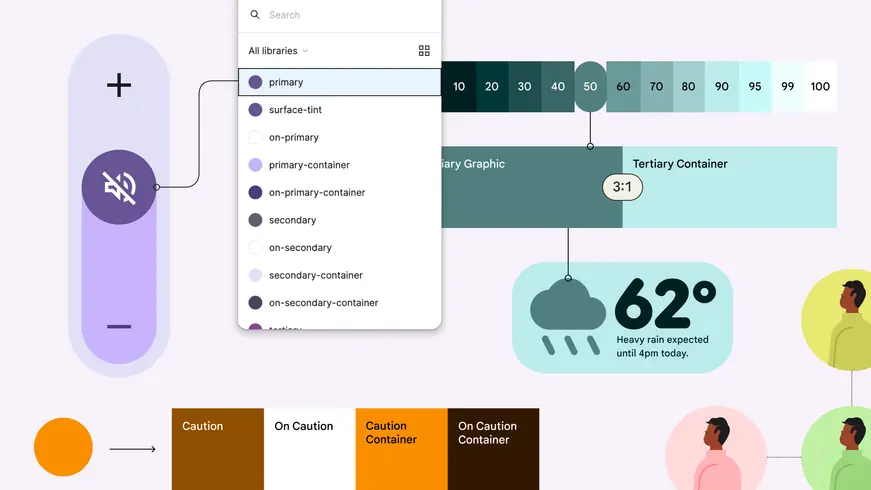
Advanced customizations include the ability to remap colors on components; define new colors in addition to the scheme; define custom color roles; and apply dynamic color to imagery.
Apply colors
You can apply colors in places or ways that aren’t provided by default.
Combine multiple color schemes
Use multiple color schemes in the same app experience, such as a baseline scheme combined with a dynamic content-based scheme.
Map or remap colors onto UI elements
Change a component’s default color mapping, or apply colors to your own custom components.
Define new colors
You can add colors to your color scheme, extending the default color roles.
Define static colors (formerly known as custom colors)
Add colors to a dynamic color scheme that stay static, which are useful for semantic colors.
Define custom color roles
Create new color roles to use alongside the 26+ standard color roles.
Adjust existing colors
You can control the color algorithm’s output to adjust the appearance of dynamic colors.
Define your own baseline scheme
You can input colors to define your own baseline scheme.
Define your own dynamic scheme
You can define color algorithm rules to produce your own custom dynamic scheme.
Use color fidelity
You can apply color fidelity to make scheme colors better match your input colors.