Icons
Icons are small symbols to easily identify actions and categories
Overview · Designing icons · Applying icons
- Get Material Symbols icons at fonts.google.com/icons. Recolor, resize, and copy and paste icons.
- Use the Material Symbols variable font to enable dynamic styling in product
- You can change the weight, fill, optical size, and grade of variable font icons
Resources
| Type | Link | Status |
|---|---|---|
| Design | Icons catalog | Available |
| Design | Material Symbols Figma plugin | Available |
| Design | Icon keyline template (ZIP) | Available |
What's new
Copy & paste customized Material Symbols
You can now copy and paste icons from Google Fonts. Once you search for and select the desired icon, options will appear in the right-hand panel to resize, recolor, and copy the customized icon to clipboard.
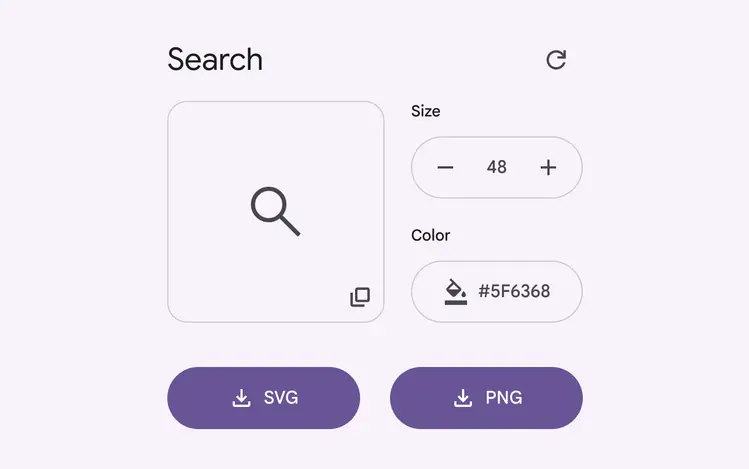
Icons can now be copied with a single click
Material Symbols
The new variable icon font set supports three styles: outlined, rounded, and sharp. All Material Symbols are newly drawn to be pixel-crisp and modernized.
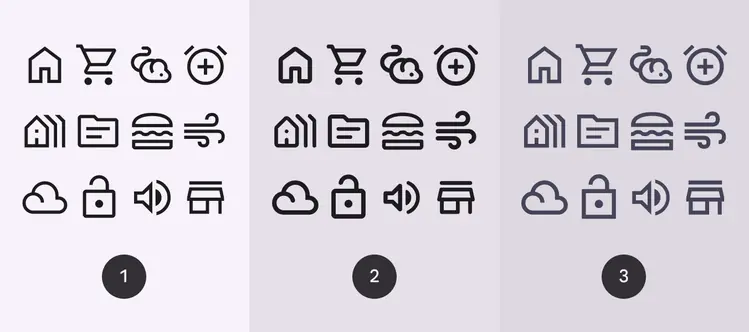
- Outlined
- Rounded
- Sharp
Adjustable axes
Material Symbols have four adjustable stylistic variable font attributes called axes. An axis refers to an attribute of a symbol that can be altered to create visual variations. The attributes are: weight, fill, optical size, grade.
A range of symbols shown with the same weight, fill, grade, and optical sizes
Material Symbols Figma plugin
Easily incorporate Material Symbols into your latest designs on Figma.
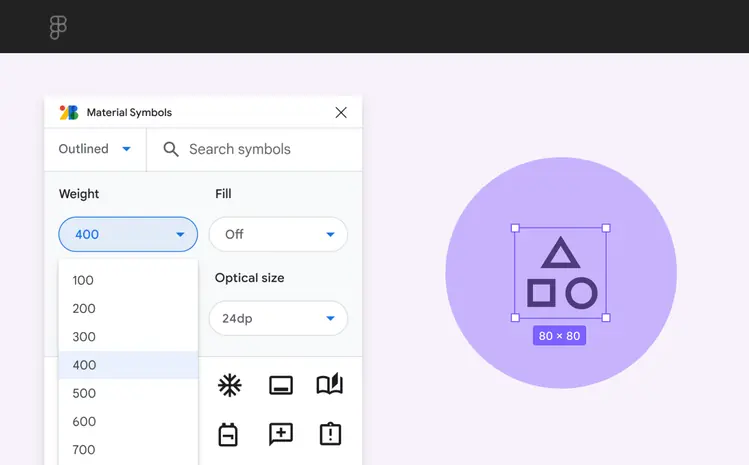
Figma Symbols plugin